
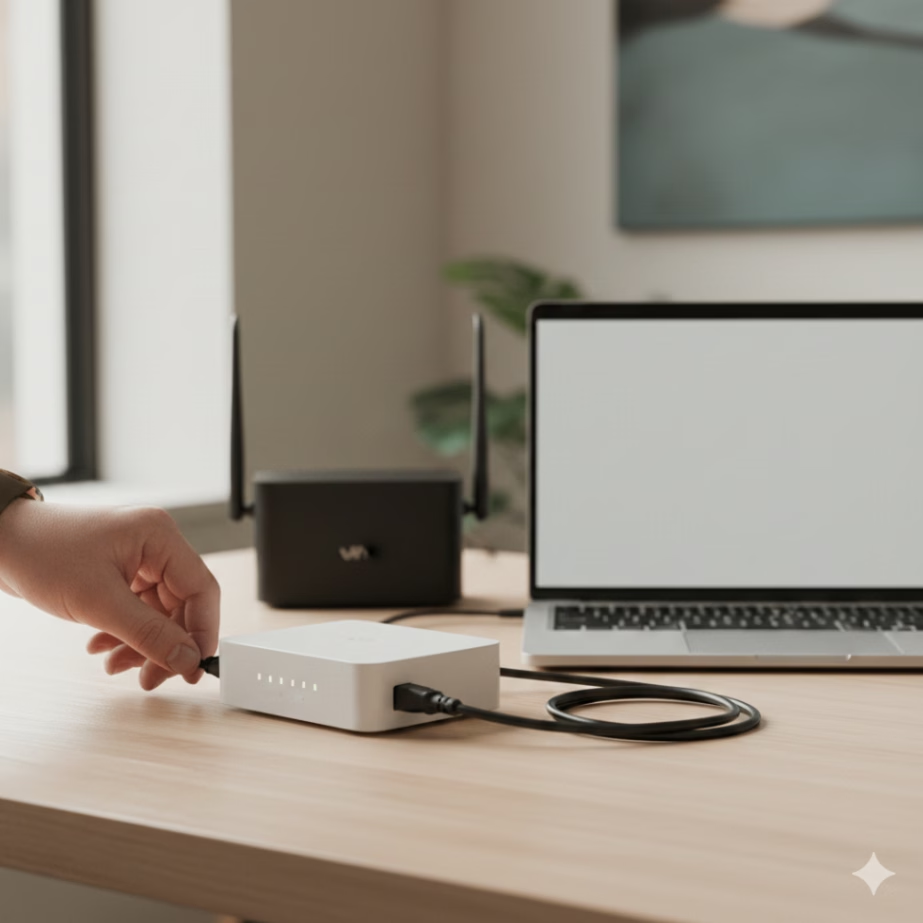
Key Highlights
- A power cycle is a quick fix for many internet connection issues. You just need to turn your networking devices off and back on.
- This process helps to clear the temporary memory and lets tasks reset. It can fix slow internet speeds and connection issues.
- You should wait at least 30 to 60 seconds after you unplug your modem. This is important—the wait helps make sure the reset is complete and works well.
- If you plan to reboot your router too, turn on the modem first. Wait until the modem is fully connected, then turn on the router.
- If power cycling does not solve your connection issues, there could be something wrong with your cables, a service outage, or your hardware. You may need to call your internet service provider for help.
Introduction
A slow or unresponsive internet connection can bring everything in your business to a stop. Before you call tech support and spend a lot of time waiting, there is one simple thing you can do first. Try power cycling your modem. This is a very good troubleshooting step for your internet connection that often helps.
This guide gives you clear and easy steps on how to do this. You do not need to know much to power cycle your modem. If you follow these steps, you can get your home network or internet back up fast, and you do not have to feel frustrated or wait for tech support. This way, your home network will be up and working again.
What Is a Modem Power Cycle and Why Use It?
A modem power cycle means to turn off your modem and then turn it on again. The best way to do this is to unplug the modem from its power source. You then need to wait for about a minute. After that, you plug the modem back in. When you do this, the modem will shut down fully. It will clear its cache and restart all its processes so it works like new.
This way of fixing your internet connection is a popular choice for connection issues. Your modem works like a small computer. It has your own processor and memory. It helps to keep everything running in your home network. After some time, small problems can build up in the software. The memory may get full too. This can slow things down or cause you to lose your connection.
Doing a power cycle is like a fast reboot for the modem. It takes care of these little issues right away. A quick reboot does not erase your settings, but it often gets your internet working again. So if you ask, “Will power cycling my modem fix internet connection problems?” the answer is often yes for your home network. This easy step can solve your connection issues fast.
Difference Between Power Cycling, Restarting, and Factory Resetting
People often mix up the words power cycle, restart, and factory reset, but these are not the same actions. A restart or reboot is when you press the power button on the device, or tell it through a program, to turn off and then back on. This is like a soft refresh for your device.
A power cycle happens when you do a hard reboot by unplugging the power cord from your device. This helps to clear out any left-over power, so your device fully shuts down and starts fresh. A factory reset is the biggest step you can take. If you press the small reset button that is set into your device, it removes all your own setups. This includes your Wi-Fi name and password. Now, the device will go back to its first factory settings.
Here’s a simple breakdown:
| Action | Method | Outcome |
|---|---|---|
| Restart/Reboot | Use power button or software option | Clears temporary issues, keeps settings |
| Power Cycle | Unplug power cord, wait, plug back in | Clears temporary issues, ensures full refresh, keeps settings |
| Factory Reset | Press recessed reset button | Wipes all custom settings, returns device to default state |
Benefits: How Power Cycling Modem Fixes Connection Issues
Power cycling your modem is usually the first thing you try when fixing common problems. It acts like a fresh start for the device. If your modem runs for weeks or months, small errors and memory issues may build up. This can make your network performance worse.
A quick reboot helps the modem clear out extra data. It will reset the inside parts of the device and set up a new connection with your internet service provider. When you do this, your internet can work better in your day-to-day use. A reboot is a simple step, but it can really help.
Some key benefits of a power cycle include:
- Clears the Cache: Power cycling helps clear out the modem’s cache. The cache is the modem’s short-term memory that can fill up and slow things down if not cleared.
- Resolves Software Glitches: When you reboot the modem, it can fix small problems in the firmware that may happen while the modem is working.
- Improves Internet Speeds: A reboot stops stuck processes and helps bring your internet speeds back up. So, if you ask, “Can power cycling a modem clear up slow internet speeds?”—the answer is yes.
When Should You Power Cycle Your Modem and Router?
Knowing when you need to power cycle your equipment is good because it can help you avoid a lot of work trying to fix a problem. You do not have to do this every day. It is best to power cycle when you see that your internet starts getting worse. The biggest signs are when your internet stops working or when it gets so slow that you feel annoyed. This should be your first step if you have problems with your connectivity.
If the websites you try to visit take a long time to open, if your video calls freeze, or if your internet stops and starts, you may need to do a power cycle. These problems often show that the modem or the router is not working well. The next parts will talk more about these signs. You will also get tips on when to reboot your devices to help prevent these problems.
Common Signs: Slow Speeds and Internet Dropouts
Your internet connection will often show you when it is time for a reboot. If there is a sudden drop in speed that cannot be explained, you should try a power cycle first. This step is a good one, as the modem can slow down after running for a long time. A simple reboot can help get your internet connection back to normal.
Watch how your devices are working. Is your smart TV stopping and starting while you try to watch a movie? Do you notice your online games lagging? If so, these could be signs that your connection is not steady. A fast reboot can often solve this problem. These issues are more than just small troubles. If you work for a business, they can lead to lost time and less work getting done.
Look out for these common signs:
- Slow Internet: Web pages, videos, and files take much longer than they should to load.
- Frequent Internet Dropouts: Your connection goes away for a few moments or minutes, then comes back.
- No Connectivity: You cannot get any device to go online, even if the modem lights look fine.
- Frozen Applications: Video call apps like Zoom or Teams keep freezing while you use them.
Recommended Frequency for Reboot Modem and Router
There is no perfect answer for how often you need to power cycle your modem and router. A good way to keep your network performance smooth is to restart them every few months. Doing a reboot now and then can help stop problems before they happen.
Having to power cycle your equipment often is a sign something is wrong. If you need to restart your tech every day or every few days just to keep the internet working well, there may be a bigger problem. The trouble could come from a device that is not working right, old firmware, or a problem from your internet service provider.
Consider these points on frequency:
- Proactive Maintenance: It is good to reboot your device every one to two months. This clears out small problems and helps keep your network performance good.
- Troubleshooting: If you see slow speeds or your connection drops, you should reboot right away.
- Red Flag: If you have to reboot every day or more times in a week, it may be time to get a new device or reach out for tech support for your small business.
Step-by-Step Modem Power Cycle Instructions
Power cycling your modem is easy and anyone can do it. You do not need any special tools to do this. The main idea is to turn off the power to the modem so all parts inside can reset.
Do not use the small reset button, as this will do a factory reset and remove your settings. The best way is to use only the power cord when power cycling your modem.
The first thing you need to do is unplug the modem from the power outlet. Leave it unplugged for some time so it can fully turn off and not have any power left. After that, plug the modem back in. Once it is plugged in, wait for about a minute or two. This gives it time to start up, connect to your internet service provider, and send out your Wi-Fi signal.
The next part will show the exact steps and timing. This will help you get it right each time you do it.
Modem Power Cycle Steps: Exact Process and Timing (How Long to Unplug Modem)
To power cycle your modem the right way, it is important to do each step at the right time. If you rush, you might not get a full reset. This can leave you with the same connectivity issues. Make sure you follow these steps as they are. This will help the modem’s inside parts lose all leftover power. A good reset gives you a better chance of fixing your connectivity problems.
Start by finding the power cord attached to the back of your modem. Follow the power cord to the wall outlet or power strip and unplug it from there. Make sure it is fully disconnected. Now, you need to wait. Some guides may say that 15 seconds is fine, but it is better to wait about 30 to 60 seconds for a full reset. This waiting time is the most important step to reset your modem.
Here is the exact process to follow:
- Step 1: Unplug the power cord of the modem from the wall outlet.
- Step 2: Wait for about 30 to 60 seconds. It’s good to wait at this time and not rush.
- Step 3: Plug the modem’s power cord back into the wall outlet.
- Step 4: Wait for 1 or 2 minutes. Let the modem start. The lights on the modem will get solid.
- Step 5: Use your computer or phone to test your internet connection.
What to Look For: Modem Lights After Reboot
After you plug the modem back in, watch the lights on the front of the modem. They will show you what is going on. These lights help you know when the modem starts up and when you have internet again. Do not think the internet will work right away after you plug in the modem. The modem needs a minute or two to start and connect. This short wait is normal for restoring connectivity.
First, you will see the power light on the modem turn on. Then, lights for “Send,” “Receive,” and “Online” or “Internet” will start blinking. This blinking shows that the modem is trying to make a connection. A proper reboot is done when most lights stop blinking and become solid green or blue. If the internet light keeps blinking without stopping, or if it turns red or orange, this means there is a problem. The next section will help you understand what each of these lights and signals mean.
Understanding Startup Indicators and Connection Status
The lights on your modem do more than just light up. They show you the connection status when you turn the device on. The symbols on the lights may look a little different from one brand to another. But the order in which they light up is usually the same. When you know what these lights mean, you can tell if the modem reboot went well or if there may be a problem.
The first light you will see is the power light. It should come on and stay solid. Then, the send and receive lights will start to blink. Sometimes, you can see these as up and down arrows. This happens when the modem is trying to talk to your ISP’s network. This is normal and part of the way things work.
The last light, and the most important one, is the internet light. This light shows if there is an internet signal. If it is on, you have internet.
- Blinking Internet Light: If you see this light blinking, the modem is trying to get a stable internet connection but has not done that yet.
- Solid Internet Light: When the internet light is solid green or blue, it means startup is good and there is a live internet connection.
- Red or Orange Light: A red or orange light often means there is a problem, which can be with the modem itself or the signal from your ISP.
Should You Power Cycle Your Router Too?
Many homes and offices now use a router to set up a Wi-Fi network. If your modem works on its own and you have a router, you may wonder if you should also power cycle your router. The simple answer is yes. It is often good to do this. Your router is like a small computer. It has a processor and memory. It helps manage traffic in your network.
A router, just like a modem, can slow down when it has to handle many devices. This can happen if you have laptops, phones, and smart home devices all connected at the same time. If doing a power cycle for the modem does not fix your issue, your router could be the problem. A good way to troubleshoot is to reboot both networking devices together. This step can solve problems with your internet and with your Wi-Fi at home.
When to Reboot Both Devices for Best Results
Power cycling only the modem can help if you think the problem is with the incoming internet connection. But, there will be times when you should restart both the modem and the router. Doing this gives your internet connection and all the devices a good start again, from the ISP line to your internet and wireless devices.
This two-device method works well if your Wi-Fi does not work but wired devices are fine. You can also use it when your network feels slow because of congestion. A home or office can have many things using the internet. You may have computers, phones, printers, and smart home devices. All of these use the router at the same time and that can put a heavy load on it. A reboot helps clear out those traffic jams on your network.
Reboot both devices for best results when:
- You are having Wi-Fi problems. For example, your devices do not connect.
- Your internet connection is slow for all devices. It feels sluggish, and you notice this on more than one device.
- You have not rebooted your device for several months now. It may be a good idea to do this for the internet to work well.
Sequence for Power Cycling Modem and Router Together
When you power cycle your modem and router, you need to turn them back on in the right order. This helps the router get a good IP address from the modem after the modem connects to your ISP. If you power them on in the wrong order, your router might not get online.
First, you should unplug the modem and the router from the power outlet. Wait for about one minute. Then, plug in the modem only. Let the modem start up. This can take several minutes. The modem is ready when the internet or online light on the front is solid. This will help you get a good internet connection.
Wait until the modem is fully online. After that, you can go ahead with the router.
- Step 1: Unplug the modem and the router.
- Step 2: Wait for at least 60 seconds.
- Step 3: Plug the modem into the power first. Wait for 2 to 3 minutes so you can see its lights stay solid.
- Step 4: After the modem is back online, plug the router into the power. Wait for 1 to 2 minutes so the router can start and make the Wi-Fi network.
Troubleshooting: If Power Cycling Doesn’t Bring Back Internet
A power cycle can help fix many connectivity issues, but it does not solve everything. If you have already turned your modem and router off and back on and your internet is still not working, you need to try other steps. The trouble might not be with your equipment itself. It could be from a real physical problem or something outside your home.
Don’t think your hardware is broken right away. The problem might be as small as a loose cable. It could also be a bigger issue if there is a service outage in your whole area. Try to look at a few more things before you call for help. You can check some things on your own. The next parts will show you what to look at next. Start with your cables and see if they are loose. Check if there is a service outage in your area too. This can help you know when you need to contact your internet service provider for help with the internet.
What to Check Next: Cables, Service Outages, Device Settings
If the reboot does not work, you need to do a physical check. The cables can get loose or may break as time goes by. Make sure the coaxial cable is screwed on tight to both the modem and the wall outlet. Also, check that the ethernet cable is clicked in well to the modem and the router, or your computer, at both ends.
Next, see if there is a service outage. Before you call your ISP, use your phone’s cellular data to go to their website. Many ISPs have a status page or online portal. Here, they tell you if there are known outages in your area. Doing this can save you time and help you avoid trouble.
Here is a quick troubleshooting checklist:
- Check all cables: Make sure every cable is plugged in the right way. They should not be loose or broken.
- Look for ISP service outages: Visit your ISP’s website or check their social media. See if there is any news about the internet being down.
- Test another device: Try to get online from another computer or phone. This helps you know if the issue is with one device or all of them.
- Connect directly: Take an ethernet cable and plug your computer right into the modem. This way, you avoid the router and see if the problem is in the router or the service.
- Review device settings: Open your computer and check that the network adapter is turned on.
When Professional Help or ISP Contact Might Be Needed
There is a point where you can’t fix the problem on your own. If you have turned your devices off and on, checked your cables, and made sure there is no service outage, then you should call for help. If you still have connectivity issues and need to reboot every day, your hardware may be getting old or breaking down. It is a sign that it’s time to get help with your connectivity.
Your internet service provider should be the first one you call when you have an internet problem. Their tech support team can check things from their side. They will see if your modem is getting the right signal or not. They can find out if the issue is in their lines or if you need to get a new modem. If you have a business, small business IT support services can also help a lot.
Contact professional help if:
- You need to power cycle the modem or router every day so you can keep the internet connection.
- The modem never gets a solid internet light, even after you try to reboot it more than once.
- Your ISP tells you the signal at your place is good, so it looks like your modem, router, or other internet equipment is not working right.
Conclusion
To sum up, power cycling your modem is an easy and helpful way to fix most internet and connectivity issues. If you restart your modem and router often, you will see better network performance. Your internet can feel faster, and you can enjoy fewer problems when you go online. Make sure you read and follow the steps in this guide, especially the timings for each step. If the problems with connectivity keep happening after you power cycle, try checking the cables. You may also need to contact your ISP to get more help. When you do these things, your internet should work well for you, so you can spend more time growing your business. If you need more support or want to book a consultation, just reach out!
Frequently Asked Questions
Is it safe to regularly power cycle my modem?
Yes, it is safe to power cycle your modem from time to time. This will not hurt the hardware. You can think of it like restarting your computer. It helps clear out small errors. A power cycle can also keep your network performance steady and help stop problems before they start.
Can modem power cycle steps clear up slow internet speeds?
Yes, doing a power cycle can be a good quick fix for slow internet. This step helps clear out the modem’s memory. It also resets things that might be using up the resources in the modem. When you power cycle the modem, it forces a new connection with your ISP. This can help your internet speeds go back to normal in only a few minutes. This is an easy way to make the internet work better when things get slow.
Do different modem brands have specific reboot instructions?
Modems can look different from each other based on the brand, but the steps for a power cycle are the same. To do a power cycle, you just need to unplug the power cord from the wall. This will work for nearly every modem. Do not press the “reset” button. That button will do a factory reset, which is not what you want. If you want to restart your modem the right way, just cut the power by unplugging it.